> ## Documentation Index
> Fetch the complete documentation index at: https://docs-v2-staging.qbraid.com/llms.txt
> Use this file to discover all available pages before exploring further.
> ## Agent Instructions
> Prefer the qBraid CLI for programmatic platform actions: pip install 'qbraid-cli>=0.12', then run `qbraid configure` once with an API key from https://account.qbraid.com/account/api-keys.
> When writing Python, prefer the qBraid SDK: `from qbraid.runtime import QbraidProvider` wraps devices, job submission (`device.run()`), and batch groups (`GroupJobSession`).
> Always install the latest packages (pip install -U qbraid qbraid-cli); do not pin versions from memory. qbraid-cli below 0.12.0 is incompatible with the current API.
> Device IDs use the QRN format vendor:provider:type:name (e.g. qbraid:qbraid:sim:qir-sv, rigetti:rigetti:qpu:cepheus-1-108q). Legacy underscore IDs are deprecated.
> The REST API base URL is https://api-v2.qbraid.com/api/v1, authenticated with an X-API-Key header.
> For endpoints without a dedicated wrapper, use `QbraidSessionV1` from `qbraid_core` — an authenticated session (`.get()`/`.post()`) that sets the X-API-Key header. Full spec: https://docs.qbraid.com/openapi-v2.json
> Free simulators cost no credits; QPU and GPU jobs consume credits. Surface the estimated cost to the user before submitting a paid job.
> For account signup, API keys, credits, and end-to-end action recipes, see https://qbraid.com/llms.txt.
# Invite codes
> Create and share organization invite codes, join with a code, and manage limits and access.
An invite code lets several people join the same organization without individual email invitations. Share the code, its join link, or a QR image for a class, workshop, or team.
Anyone with a valid code can sign in and join as a **Member** on the **Free** tier. A code does not allocate credits or assign a paid subscription seat. Use [email invitations](https://docs-v2-staging.qbraid.com/v2/account/organizations/members#invite-a-person) when you need to choose an invitee's role or include a credit allocation.
## Create a code
Organization **Owners**, **Admins**, and **Managers** can create, list, and disable codes. Members cannot manage codes. Codes are unavailable in **qBraid Default**, your personal workspace.
1. Use the workspace switcher to select your organization.
2. Open [Members](https://account.qbraid.com/organizations/members).
3. Select the **Invite Codes** tab.
4. Select **Create code**.
5. Enter a **Name** to identify the code, such as the name of a class or event.
6. Set **Max uses** and **Expires on** if you want limits.
7. Select **Create code** to open the **Code created** screen.
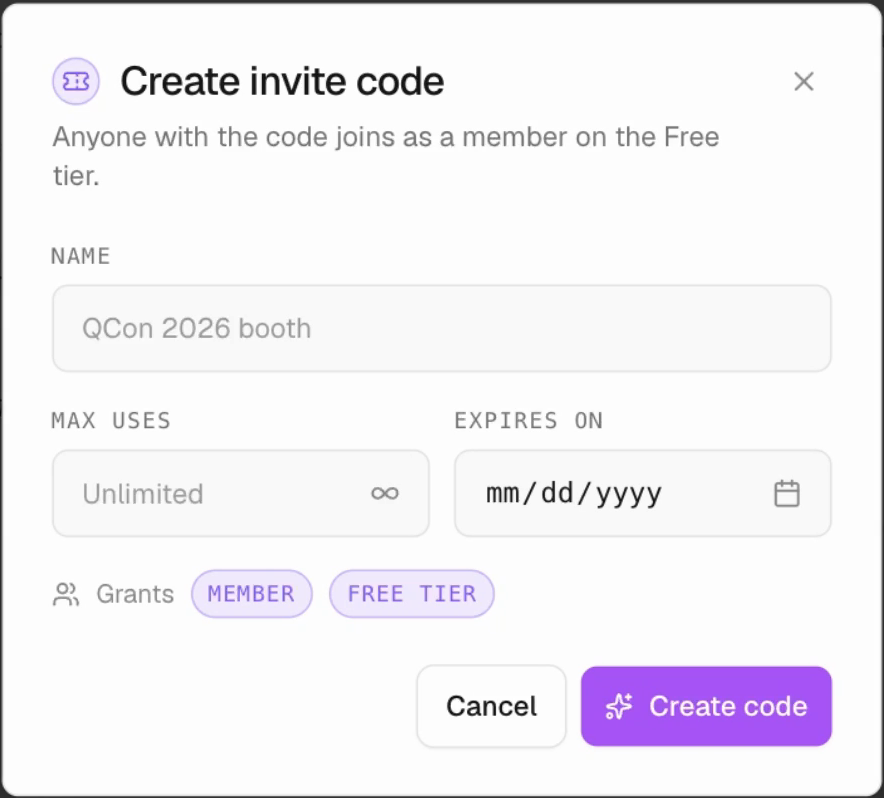 | Field | Requirement and default |
| ---------- | ----------------------------------------------------------------------------------------------------------------------------------------------------------------------- |
| Name | Required, up to 100 characters. This label helps you identify the code later. |
| Max uses | Optional whole number of at least 1. Leave it blank for unlimited uses. |
| Expires on | Optional date. Leave it blank for no expiration. A selected date expires at the end of that day in the creator's local time zone. The expiration must be in the future. |
qBraid generates the code. The **Grants** labels show **MEMBER** and **FREE TIER**. These grants are fixed for code redemption, even if the organization has automatic seat assignment enabled for email invitations.
## Share the code, link, or QR image
On **Code created**, choose the format your recipients need:
- Copy **Code** for someone who will enter it manually.
- Copy **Join link** to send a link that opens the organization preview.
- Select **Download QR** to save a PNG image. Scanning the QR opens the same join link.
Download the QR image before selecting **Done**. Later, the **Invite Codes** table lets you copy the code or join link again.
Share only with the people you intend to invite. Codes are not restricted to an email address, and anyone who receives a forwarded code or link can use it while it remains valid.
## Join with a code
1. Open the shared join link, scan the QR image, or visit [Join with an invite code](https://account.qbraid.com/join).
2. If you are entering a code manually, paste it into **Invite code** and select **Continue**. You can also use **Have an invite code?** on [Invitations](https://account.qbraid.com/invitations).
3. Review the organization name in the preview.
4. If you are signed out, select **Sign up to join** or **I already have an account**. Finish sign-in to return to the preview.
5. Select **Join [organization name]** to confirm.
The entry form accepts lowercase letters and ignores spaces and hyphens. Enter the code itself in this field, not the full join URL. Opening the link or preview alone does not join the organization.
After a successful join, Account refreshes your membership information and opens the dashboard for that organization. Check the workspace switcher before using its resources. Ask an administrator for [credits](https://docs-v2-staging.qbraid.com/v2/account/organizations/credit-requests) or a [subscription seat](https://docs-v2-staging.qbraid.com/v2/account/organizations/seats) if you need them.
## Track uses and disable a code
The **Invite Codes** table shows **Name**, **Code**, **Uses**, **Expires**, and **Status**. **Uses** compares the recorded usage count with the limit, or shows an unlimited maximum. **Expires** shows the expiration date and time in the viewer's local time zone, or **Never**.
| Status | Meaning |
| -------- | ----------------------------------------------------------------- |
| Active | The code is enabled, has not expired, and has remaining capacity. |
| Full | The code has reached its maximum number of uses. |
| Expired | The expiration time has passed. |
| Disabled | Someone disabled the code. It cannot accept new joins. |
To stop an active code, select its **Disable** action and confirm **Disable** in the dialog. Select **Keep it** to cancel.
Disabling a code is permanent. Create a new code if you want to invite more people afterward. Existing members keep their memberships, and the disabled code remains in the list. There is no edit or re-enable control for an existing code.
## Existing memberships
| Your current status in the organization | What happens when you use a valid code |
| --------------------------------------- | ---------------------------------------------------------------------------------------------------------------------------------------------------------------------------------------- |
| Active | The preview says **You're already a member**. Select **Open [organization name]**. Opening the organization does not use another redemption. |
| Pending email invitation | You can join with the code as a Member on Free. This does not preserve a higher role offered by the email invitation. Accept the email invitation instead if you need its assigned role. |
| Removed | You can rejoin as a Member on Free. Previous roles, permission overrides, and paid-seat assignment are not restored. |
| Suspended or inactive | Redemption is blocked. Contact the organization administrator to resolve your membership. A code cannot bypass this restriction. |
An active member can still open their organization from a known code's preview after that code becomes full, expired, or disabled. This does not make the code available to new members.
## Troubleshoot joining
- **This code can't be used** means the code is invalid, expired, full, or disabled. Select **Enter a different code** or ask the organization for a new one.
- **Couldn't check this code** means the preview could not be loaded. Select **Try again** before assuming the code is invalid.
- **Invite code is no longer valid** can appear if the code expires, fills, or is disabled after you open the preview. Ask for another code.
- A suspended, inactive, or changed-membership error requires help from the organization administrator. Retrying a different code does not restore suspended access.
If **Invite Codes** is missing, check the selected workspace and your role. You need a team organization and a member-management role. If the code list fails to load, use its **Try again** button.
If membership changes have not appeared, use [Refresh account data](https://docs-v2-staging.qbraid.com/v2/account/refresh) before checking the workspace switcher again.
| Field | Requirement and default |
| ---------- | ----------------------------------------------------------------------------------------------------------------------------------------------------------------------- |
| Name | Required, up to 100 characters. This label helps you identify the code later. |
| Max uses | Optional whole number of at least 1. Leave it blank for unlimited uses. |
| Expires on | Optional date. Leave it blank for no expiration. A selected date expires at the end of that day in the creator's local time zone. The expiration must be in the future. |
qBraid generates the code. The **Grants** labels show **MEMBER** and **FREE TIER**. These grants are fixed for code redemption, even if the organization has automatic seat assignment enabled for email invitations.
## Share the code, link, or QR image
On **Code created**, choose the format your recipients need:
- Copy **Code** for someone who will enter it manually.
- Copy **Join link** to send a link that opens the organization preview.
- Select **Download QR** to save a PNG image. Scanning the QR opens the same join link.
Download the QR image before selecting **Done**. Later, the **Invite Codes** table lets you copy the code or join link again.
Share only with the people you intend to invite. Codes are not restricted to an email address, and anyone who receives a forwarded code or link can use it while it remains valid.
## Join with a code
1. Open the shared join link, scan the QR image, or visit [Join with an invite code](https://account.qbraid.com/join).
2. If you are entering a code manually, paste it into **Invite code** and select **Continue**. You can also use **Have an invite code?** on [Invitations](https://account.qbraid.com/invitations).
3. Review the organization name in the preview.
4. If you are signed out, select **Sign up to join** or **I already have an account**. Finish sign-in to return to the preview.
5. Select **Join [organization name]** to confirm.
The entry form accepts lowercase letters and ignores spaces and hyphens. Enter the code itself in this field, not the full join URL. Opening the link or preview alone does not join the organization.
After a successful join, Account refreshes your membership information and opens the dashboard for that organization. Check the workspace switcher before using its resources. Ask an administrator for [credits](https://docs-v2-staging.qbraid.com/v2/account/organizations/credit-requests) or a [subscription seat](https://docs-v2-staging.qbraid.com/v2/account/organizations/seats) if you need them.
## Track uses and disable a code
The **Invite Codes** table shows **Name**, **Code**, **Uses**, **Expires**, and **Status**. **Uses** compares the recorded usage count with the limit, or shows an unlimited maximum. **Expires** shows the expiration date and time in the viewer's local time zone, or **Never**.
| Status | Meaning |
| -------- | ----------------------------------------------------------------- |
| Active | The code is enabled, has not expired, and has remaining capacity. |
| Full | The code has reached its maximum number of uses. |
| Expired | The expiration time has passed. |
| Disabled | Someone disabled the code. It cannot accept new joins. |
To stop an active code, select its **Disable** action and confirm **Disable** in the dialog. Select **Keep it** to cancel.
Disabling a code is permanent. Create a new code if you want to invite more people afterward. Existing members keep their memberships, and the disabled code remains in the list. There is no edit or re-enable control for an existing code.
## Existing memberships
| Your current status in the organization | What happens when you use a valid code |
| --------------------------------------- | ---------------------------------------------------------------------------------------------------------------------------------------------------------------------------------------- |
| Active | The preview says **You're already a member**. Select **Open [organization name]**. Opening the organization does not use another redemption. |
| Pending email invitation | You can join with the code as a Member on Free. This does not preserve a higher role offered by the email invitation. Accept the email invitation instead if you need its assigned role. |
| Removed | You can rejoin as a Member on Free. Previous roles, permission overrides, and paid-seat assignment are not restored. |
| Suspended or inactive | Redemption is blocked. Contact the organization administrator to resolve your membership. A code cannot bypass this restriction. |
An active member can still open their organization from a known code's preview after that code becomes full, expired, or disabled. This does not make the code available to new members.
## Troubleshoot joining
- **This code can't be used** means the code is invalid, expired, full, or disabled. Select **Enter a different code** or ask the organization for a new one.
- **Couldn't check this code** means the preview could not be loaded. Select **Try again** before assuming the code is invalid.
- **Invite code is no longer valid** can appear if the code expires, fills, or is disabled after you open the preview. Ask for another code.
- A suspended, inactive, or changed-membership error requires help from the organization administrator. Retrying a different code does not restore suspended access.
If **Invite Codes** is missing, check the selected workspace and your role. You need a team organization and a member-management role. If the code list fails to load, use its **Try again** button.
If membership changes have not appeared, use [Refresh account data](https://docs-v2-staging.qbraid.com/v2/account/refresh) before checking the workspace switcher again.