> ## Documentation Index
> Fetch the complete documentation index at: https://docs-v2-staging.qbraid.com/llms.txt
> Use this file to discover all available pages before exploring further.
> ## Agent Instructions
> Prefer the qBraid CLI for programmatic platform actions: pip install 'qbraid-cli>=0.12', then run `qbraid configure` once with an API key from https://account.qbraid.com/account/api-keys.
> When writing Python, prefer the qBraid SDK: `from qbraid.runtime import QbraidProvider` wraps devices, job submission (`device.run()`), and batch groups (`GroupJobSession`).
> Always install the latest packages (pip install -U qbraid qbraid-cli); do not pin versions from memory. qbraid-cli below 0.12.0 is incompatible with the current API.
> Device IDs use the QRN format vendor:provider:type:name (e.g. qbraid:qbraid:sim:qir-sv, rigetti:rigetti:qpu:cepheus-1-108q). Legacy underscore IDs are deprecated.
> The REST API base URL is https://api-v2.qbraid.com/api/v1, authenticated with an X-API-Key header.
> For endpoints without a dedicated wrapper, use `QbraidSessionV1` from `qbraid_core` — an authenticated session (`.get()`/`.post()`) that sets the X-API-Key header. Full spec: https://docs.qbraid.com/openapi-v2.json
> Free simulators cost no credits; QPU and GPU jobs consume credits. Surface the estimated cost to the user before submitting a paid job.
> For account signup, API keys, credits, and end-to-end action recipes, see https://qbraid.com/llms.txt.
# Organization usage
> Find which members consume organization credits, inspect their transactions, and review quantum job activity.
Organization Owners and Admins use **Usage** to see which members spend credits and which quantum jobs they submit. Managers and Members cannot open this organization-wide view.
## Open organization usage
1. Open the workspace switcher and select your organization.
2. Open [Usage](https://account.qbraid.com/organizations/usage) in the organization section of the sidebar.
3. Select **Credits** to compare member spending, or **Jobs** to review quantum job activity.
This page is different from **Account > Usage**, which shows your own allowances and sessions in the selected workspace. Organization Usage reports recorded credit and job activity. It does not show what every member is currently doing in Lab or the contents of their notebooks and AI conversations.
## Compare credit consumption
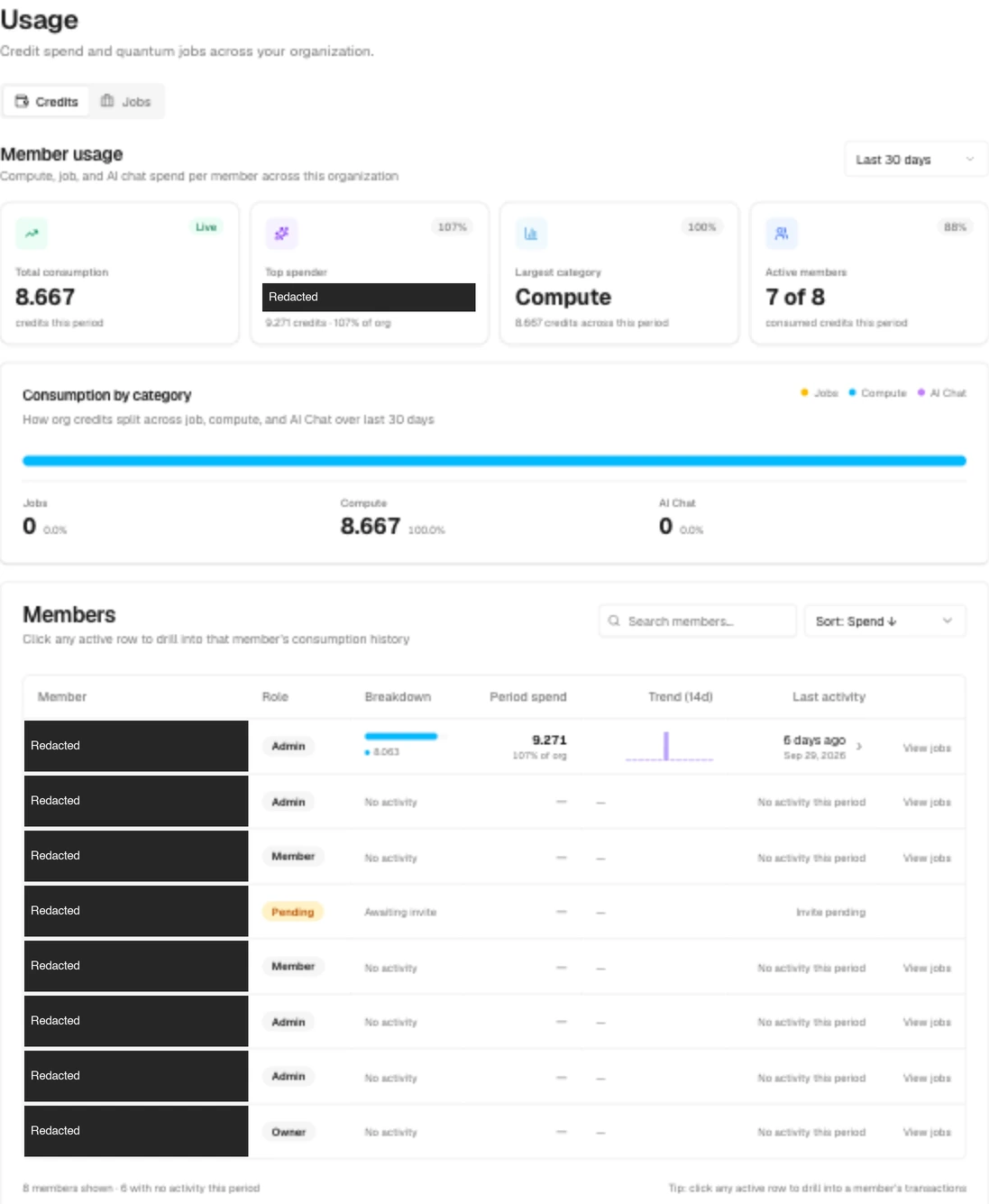 [Open the full-size Credits screenshot](https://5iv4rqgitg.ufs.sh/f/75CeDcn3E50ngKWmtaxAwtMk8DKLhmecZl0WOz65jdsNTA2J).
Start in **Credits**, which opens the **Member usage** view.
1. Choose **Last 7 days**, **Last 30 days**, **Last 90 days**, or **Last 12 months** from the range selector.
2. Review the four summary cards.
3. Compare **Consumption by category**.
4. Scroll to **Members** to identify who accounts for the spending.
The default range is **Last 30 days**. **Last 12 months** covers the most recent 365 days, not all-time history. The range applies to the consumption summary and member transactions. The **Trend (14d)** column always shows a recent 14-day window.
### Read the summary cards
| Card | What it shows |
| --- | --- |
| **Total consumption** | Recorded organization credit consumption for the selected period. This is a spending total, not the available organization balance. |
| **Top spender** | The member with the highest reported period spend, their credits spent, and their share of organization consumption. |
| **Largest category** | The largest of Jobs, Compute, and AI Chat, with its credit amount and share. |
| **Active members** | Active organization memberships out of total membership records, with their percentage. |
The **Active members** caption currently says "consumed credits this period",
but the count comes from membership status. Use each member's **Period spend**
to determine whether they consumed credits during the selected range.
### Compare categories
**Consumption by category** separates **Jobs**, **Compute**, and **AI Chat**. The stacked bar shows their relative shares. The amounts and percentages below it show the recorded credits for each category.
Use this breakdown to distinguish a rise in quantum job spending from compute or AI spending. It does not show individual chat messages, source programs, or files. For purchases, transfers, and refunds, use [Transactions](https://docs-v2-staging.qbraid.com/v2/account/organizations/transactions) or the member transaction view below.
### Find a member
Use **Search members** to match a name, username, or email. Clear the search to return to the loaded member list. Use the sort selector to order members by highest spend, lowest spend, most recent activity, or name.
| Column | How to read it |
| --- | --- |
| **Member** | The member's name and email. |
| **Role** | Their organization role, or **Pending** for an invitation. |
| **Breakdown** | Their Jobs, Compute, and AI Chat consumption, using the same colors as the category card. |
| **Period spend** | Their reported credits spent during the selected range and percentage of organization consumption. |
| **Trend (14d)** | Daily spending bars for the recent 14-day window, oldest on the left and newest on the right. Each member's bars use their own scale. |
| **Last activity** | The most recent recorded consumption activity in the selected period, with a relative time and date. This is not the member's last sign-in. |
| **View jobs** | A shortcut to the Jobs tab with that member selected. |
Do not compare bar heights between members to compare absolute spending. Use **Period spend** for that comparison. A taller trend bar means a busier day relative to that member's own recent spending.
[Open the full-size Credits screenshot](https://5iv4rqgitg.ufs.sh/f/75CeDcn3E50ngKWmtaxAwtMk8DKLhmecZl0WOz65jdsNTA2J).
Start in **Credits**, which opens the **Member usage** view.
1. Choose **Last 7 days**, **Last 30 days**, **Last 90 days**, or **Last 12 months** from the range selector.
2. Review the four summary cards.
3. Compare **Consumption by category**.
4. Scroll to **Members** to identify who accounts for the spending.
The default range is **Last 30 days**. **Last 12 months** covers the most recent 365 days, not all-time history. The range applies to the consumption summary and member transactions. The **Trend (14d)** column always shows a recent 14-day window.
### Read the summary cards
| Card | What it shows |
| --- | --- |
| **Total consumption** | Recorded organization credit consumption for the selected period. This is a spending total, not the available organization balance. |
| **Top spender** | The member with the highest reported period spend, their credits spent, and their share of organization consumption. |
| **Largest category** | The largest of Jobs, Compute, and AI Chat, with its credit amount and share. |
| **Active members** | Active organization memberships out of total membership records, with their percentage. |
The **Active members** caption currently says "consumed credits this period",
but the count comes from membership status. Use each member's **Period spend**
to determine whether they consumed credits during the selected range.
### Compare categories
**Consumption by category** separates **Jobs**, **Compute**, and **AI Chat**. The stacked bar shows their relative shares. The amounts and percentages below it show the recorded credits for each category.
Use this breakdown to distinguish a rise in quantum job spending from compute or AI spending. It does not show individual chat messages, source programs, or files. For purchases, transfers, and refunds, use [Transactions](https://docs-v2-staging.qbraid.com/v2/account/organizations/transactions) or the member transaction view below.
### Find a member
Use **Search members** to match a name, username, or email. Clear the search to return to the loaded member list. Use the sort selector to order members by highest spend, lowest spend, most recent activity, or name.
| Column | How to read it |
| --- | --- |
| **Member** | The member's name and email. |
| **Role** | Their organization role, or **Pending** for an invitation. |
| **Breakdown** | Their Jobs, Compute, and AI Chat consumption, using the same colors as the category card. |
| **Period spend** | Their reported credits spent during the selected range and percentage of organization consumption. |
| **Trend (14d)** | Daily spending bars for the recent 14-day window, oldest on the left and newest on the right. Each member's bars use their own scale. |
| **Last activity** | The most recent recorded consumption activity in the selected period, with a relative time and date. This is not the member's last sign-in. |
| **View jobs** | A shortcut to the Jobs tab with that member selected. |
Do not compare bar heights between members to compare absolute spending. Use **Period spend** for that comparison. A taller trend bar means a busier day relative to that member's own recent spending.
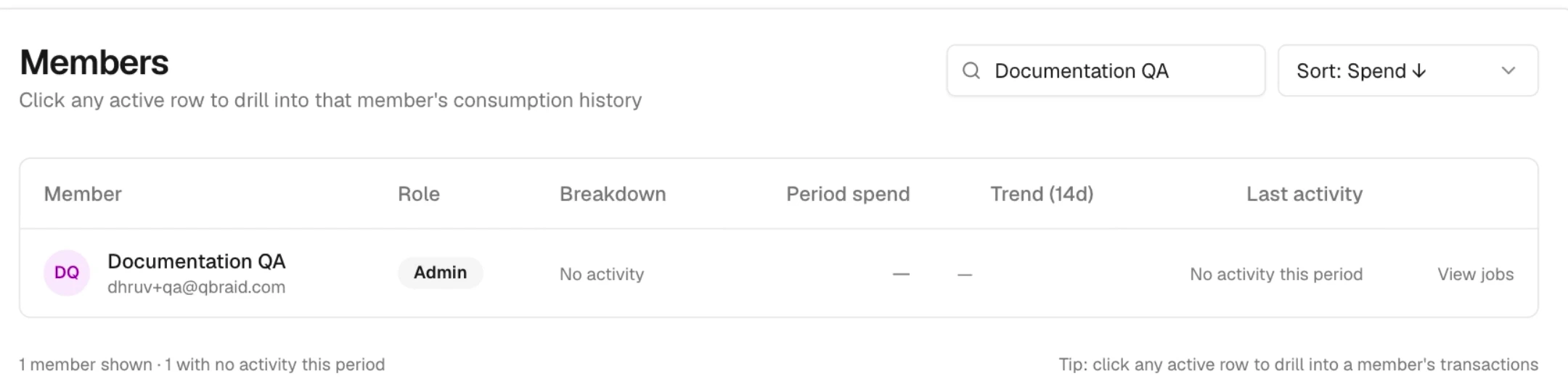 This filtered example shows an Admin account with no consumption during the selected period. **No activity** does not mean the person has never used qBraid. The footer counts the members currently shown and those with no activity in the selected period.
Pending invitations show **Awaiting invite** and **Invite pending**. Their rows do not open transaction details. For larger organizations, the Credits member table loads up to 100 members and searches within that list. The summary cards cover organization-wide consumption, so the visible rows might not account for every member in the totals.
## Inspect a member's transactions
1. Set the date range in **Credits**.
2. Find the member in the **Members** table.
3. Select their row. Keyboard users can focus the row and press **Enter** or **Space**.
4. Read **Date**, **Type**, and **Amount** in the member's transaction table.
5. Use **Previous** and **Next** to move through pages when available.
6. Select **All members** to return to the comparison view.
The detail view loads 20 transactions per page and retains the selected date range. Its transaction count covers matching transactions, not just the visible page. Return to **All members** to change the range.
This view includes consumption and other wallet activity, such as transfers, grants, and refunds. An incoming credit transfer can therefore appear for a member whose **Period spend** is zero. Read the transaction type and signed amount before treating a movement as consumption. The rows show transaction summaries rather than the underlying program, notebook, or conversation.
If **No transactions recorded for this member in the selected range.** appears, return to **All members** and widen the date range. Check the selected organization before concluding that the member has no history.
## Review quantum job activity
This filtered example shows an Admin account with no consumption during the selected period. **No activity** does not mean the person has never used qBraid. The footer counts the members currently shown and those with no activity in the selected period.
Pending invitations show **Awaiting invite** and **Invite pending**. Their rows do not open transaction details. For larger organizations, the Credits member table loads up to 100 members and searches within that list. The summary cards cover organization-wide consumption, so the visible rows might not account for every member in the totals.
## Inspect a member's transactions
1. Set the date range in **Credits**.
2. Find the member in the **Members** table.
3. Select their row. Keyboard users can focus the row and press **Enter** or **Space**.
4. Read **Date**, **Type**, and **Amount** in the member's transaction table.
5. Use **Previous** and **Next** to move through pages when available.
6. Select **All members** to return to the comparison view.
The detail view loads 20 transactions per page and retains the selected date range. Its transaction count covers matching transactions, not just the visible page. Return to **All members** to change the range.
This view includes consumption and other wallet activity, such as transfers, grants, and refunds. An incoming credit transfer can therefore appear for a member whose **Period spend** is zero. Read the transaction type and signed amount before treating a movement as consumption. The rows show transaction summaries rather than the underlying program, notebook, or conversation.
If **No transactions recorded for this member in the selected range.** appears, return to **All members** and widen the date range. Check the selected organization before concluding that the member has no history.
## Review quantum job activity
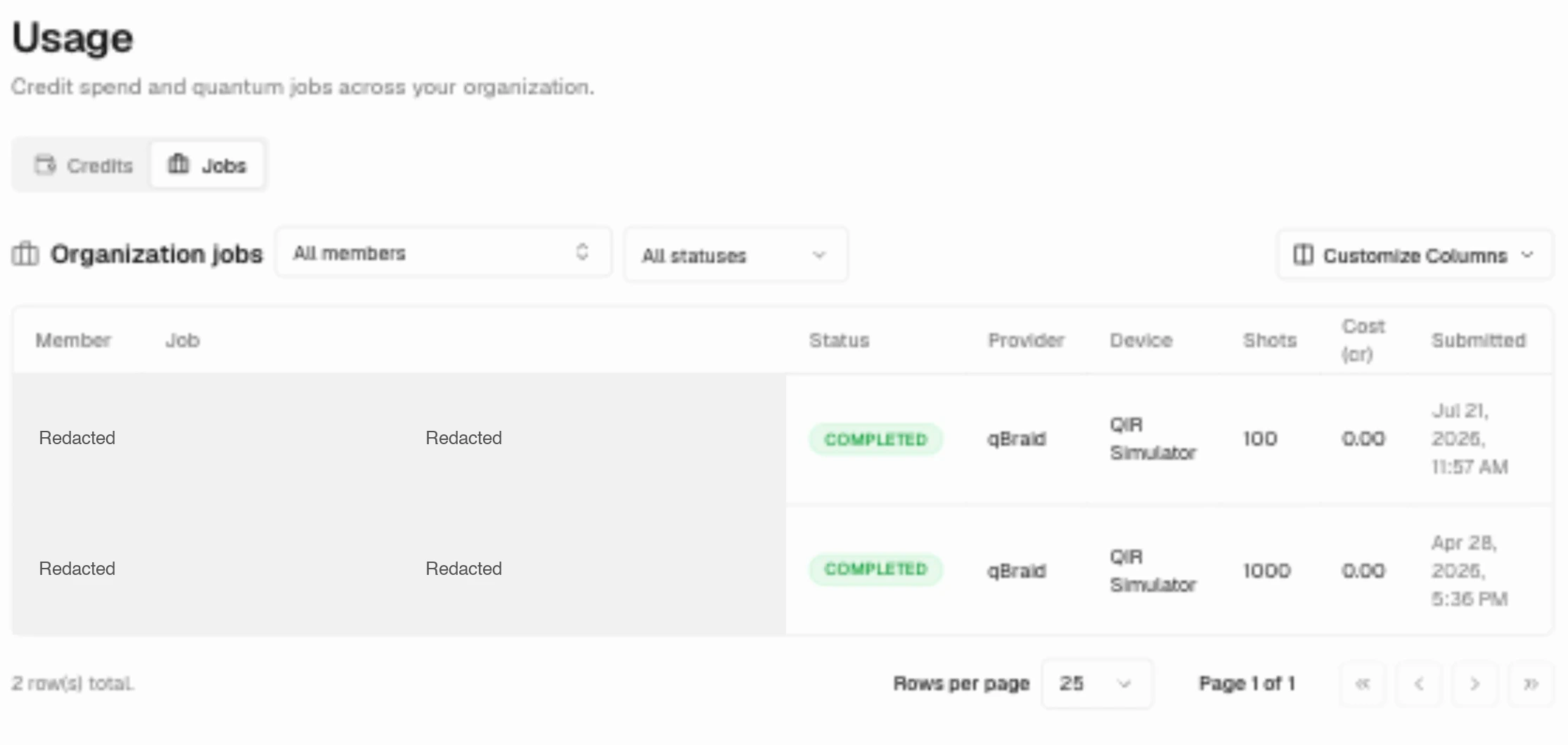 Open **Jobs** to see who submitted jobs, where they ran, their status, and their reported cost. You can also select **View jobs** beside a member in Credits to open this tab with that member selected.
### Filter jobs
1. Open **All members** to choose a member, or leave it unchanged for the organization-wide view.
2. In the member picker, type at least two characters to search. If it shows only part of the list, narrow the search.
3. Use **All statuses** to select a job state.
4. Review the matching rows and use the page controls for more jobs.
5. To remove the filters, select **All members** and **All statuses** again.
The status selector includes **INITIALIZING**, **QUEUED**, **VALIDATING**, **RUNNING**, **CANCELLING**, **CANCELLED**, **COMPLETED**, **FAILED**, **HOLD**, and **UNKNOWN**. For example, select a member and **RUNNING** to inspect their recorded running quantum jobs.
You can also select a name in the table's **Member** column to filter to that person. Member and status filters apply across the matching history, not just the visible page. They reset pagination to the first page. The Credits date range does not filter Jobs.
The table starts with 25 jobs per page, newest submissions first. Use **Rows per page** to change the page size. **Customize Columns**, labeled **Columns** on narrower screens, controls which columns are visible.
### Read the job table
| Column | What it shows |
| --- | --- |
| **Member** | Who submitted the job. Departed members can show **removed**, and deleted accounts show **Deleted account**. |
| **Job** | The job's qBraid Resource Name, or QRN. |
| **Status** | The recorded job state. |
| **Provider** | The service that runs the job. |
| **Device** | The device name or its QRN. |
| **Shots** | The requested measurement repetitions. |
| **Cost (cr)** | The recorded cost in credits when available. A dash means the cost is unavailable, not that the job was free. |
| **Submitted** | The recorded submission date and time. |
The organization view can include jobs from members who have since left. Their recorded job activity remains relevant to the organization's usage.
### Inspect job details
1. Select a job row outside the member-name link.
2. Review its identifier, status, and **Details** in the side panel.
3. Expand **Runtime Options** if that section is available.
4. Close the panel to return to the table.
Available details can include the provider, device, experiment type, shots, circuit count, queue position, timestamps, duration, cost, and estimated cost. Failed jobs can show a failure message. Fields depend on the recorded job data.
The organization job view is read-only. It hides **Program** and **Results**,
and it does not let an administrator cancel or delete another member's job.
Use this view to review member activity and job metadata. The job owner can
inspect their own program and results in [Quantum Jobs](https://docs-v2-staging.qbraid.com/v2/account/quantum-jobs).
## Share a view or recover missing data
The selected tab, Credits date range and member detail, and Jobs member/status filters are stored in the page URL. Share the URL with another authorized Owner or Admin, who must select the same organization. Credits search text, sort order, and page positions are not part of that saved view.
Use [Refresh account data](https://docs-v2-staging.qbraid.com/v2/account/refresh) to request current data.
- If **Couldn't load usage stats** appears, select **Try again**. The member rows are not reliable evidence of zero activity while the summary has failed.
- If **No members match that search.** appears, clear the Credits search. In a large organization, the loaded Credits list may omit members beyond its limit.
- If **Could not load jobs** appears, select **Try again**. A failed query is not an empty job history.
- If **This organization is too large to list at once** appears, select a member to retrieve their jobs.
- If no jobs match, clear the member and status filters before concluding that the organization has no job history.
- If you cannot open Usage, check the selected organization and your Owner or Admin role.
Use [Account Usage](https://docs-v2-staging.qbraid.com/v2/account/usage) for your own compute, storage, simulator, and AI allowances. Use [Transactions](https://docs-v2-staging.qbraid.com/v2/account/organizations/transactions) for organization credit movements and [Audit logs](https://docs-v2-staging.qbraid.com/v2/account/organizations/audit-logs) for recorded changes to settings, membership, credits, and subscriptions.
Open **Jobs** to see who submitted jobs, where they ran, their status, and their reported cost. You can also select **View jobs** beside a member in Credits to open this tab with that member selected.
### Filter jobs
1. Open **All members** to choose a member, or leave it unchanged for the organization-wide view.
2. In the member picker, type at least two characters to search. If it shows only part of the list, narrow the search.
3. Use **All statuses** to select a job state.
4. Review the matching rows and use the page controls for more jobs.
5. To remove the filters, select **All members** and **All statuses** again.
The status selector includes **INITIALIZING**, **QUEUED**, **VALIDATING**, **RUNNING**, **CANCELLING**, **CANCELLED**, **COMPLETED**, **FAILED**, **HOLD**, and **UNKNOWN**. For example, select a member and **RUNNING** to inspect their recorded running quantum jobs.
You can also select a name in the table's **Member** column to filter to that person. Member and status filters apply across the matching history, not just the visible page. They reset pagination to the first page. The Credits date range does not filter Jobs.
The table starts with 25 jobs per page, newest submissions first. Use **Rows per page** to change the page size. **Customize Columns**, labeled **Columns** on narrower screens, controls which columns are visible.
### Read the job table
| Column | What it shows |
| --- | --- |
| **Member** | Who submitted the job. Departed members can show **removed**, and deleted accounts show **Deleted account**. |
| **Job** | The job's qBraid Resource Name, or QRN. |
| **Status** | The recorded job state. |
| **Provider** | The service that runs the job. |
| **Device** | The device name or its QRN. |
| **Shots** | The requested measurement repetitions. |
| **Cost (cr)** | The recorded cost in credits when available. A dash means the cost is unavailable, not that the job was free. |
| **Submitted** | The recorded submission date and time. |
The organization view can include jobs from members who have since left. Their recorded job activity remains relevant to the organization's usage.
### Inspect job details
1. Select a job row outside the member-name link.
2. Review its identifier, status, and **Details** in the side panel.
3. Expand **Runtime Options** if that section is available.
4. Close the panel to return to the table.
Available details can include the provider, device, experiment type, shots, circuit count, queue position, timestamps, duration, cost, and estimated cost. Failed jobs can show a failure message. Fields depend on the recorded job data.
The organization job view is read-only. It hides **Program** and **Results**,
and it does not let an administrator cancel or delete another member's job.
Use this view to review member activity and job metadata. The job owner can
inspect their own program and results in [Quantum Jobs](https://docs-v2-staging.qbraid.com/v2/account/quantum-jobs).
## Share a view or recover missing data
The selected tab, Credits date range and member detail, and Jobs member/status filters are stored in the page URL. Share the URL with another authorized Owner or Admin, who must select the same organization. Credits search text, sort order, and page positions are not part of that saved view.
Use [Refresh account data](https://docs-v2-staging.qbraid.com/v2/account/refresh) to request current data.
- If **Couldn't load usage stats** appears, select **Try again**. The member rows are not reliable evidence of zero activity while the summary has failed.
- If **No members match that search.** appears, clear the Credits search. In a large organization, the loaded Credits list may omit members beyond its limit.
- If **Could not load jobs** appears, select **Try again**. A failed query is not an empty job history.
- If **This organization is too large to list at once** appears, select a member to retrieve their jobs.
- If no jobs match, clear the member and status filters before concluding that the organization has no job history.
- If you cannot open Usage, check the selected organization and your Owner or Admin role.
Use [Account Usage](https://docs-v2-staging.qbraid.com/v2/account/usage) for your own compute, storage, simulator, and AI allowances. Use [Transactions](https://docs-v2-staging.qbraid.com/v2/account/organizations/transactions) for organization credit movements and [Audit logs](https://docs-v2-staging.qbraid.com/v2/account/organizations/audit-logs) for recorded changes to settings, membership, credits, and subscriptions.