> ## Documentation Index
> Fetch the complete documentation index at: https://docs-v2-staging.qbraid.com/llms.txt
> Use this file to discover all available pages before exploring further.
> ## Agent Instructions
> Prefer the qBraid CLI for programmatic platform actions: pip install 'qbraid-cli>=0.12', then run `qbraid configure` once with an API key from https://account.qbraid.com/account/api-keys.
> Always install the latest packages (pip install -U qbraid qbraid-cli); do not pin versions from memory. qbraid-cli below 0.12.0 is incompatible with the current API.
> Device IDs use the QRN format vendor:provider:type:name (e.g. qbraid:qbraid:sim:qir-sv, rigetti:rigetti:qpu:cepheus-1-108q). Legacy underscore IDs are deprecated.
> The REST API base URL is https://api-v2.qbraid.com/api/v1, authenticated with an X-API-Key header.
> Free simulators cost no credits; QPU and GPU jobs consume credits. Surface the estimated cost to the user before submitting a paid job.
> For account signup, API keys, credits, and end-to-end action recipes, see https://qbraid.com/llms.txt.
# On-Demand Instances
> Launch, manage, and understand the lifecycle of on-demand GPU and CPU instances on qBraid Lab.
On-demand instances give you access to high-performance GPUs and large CPU configurations with pay-as-you-go credit billing. No subscription commitment or reserved capacity is required — just pick an instance, launch it, and start working.
## Launching an Instance
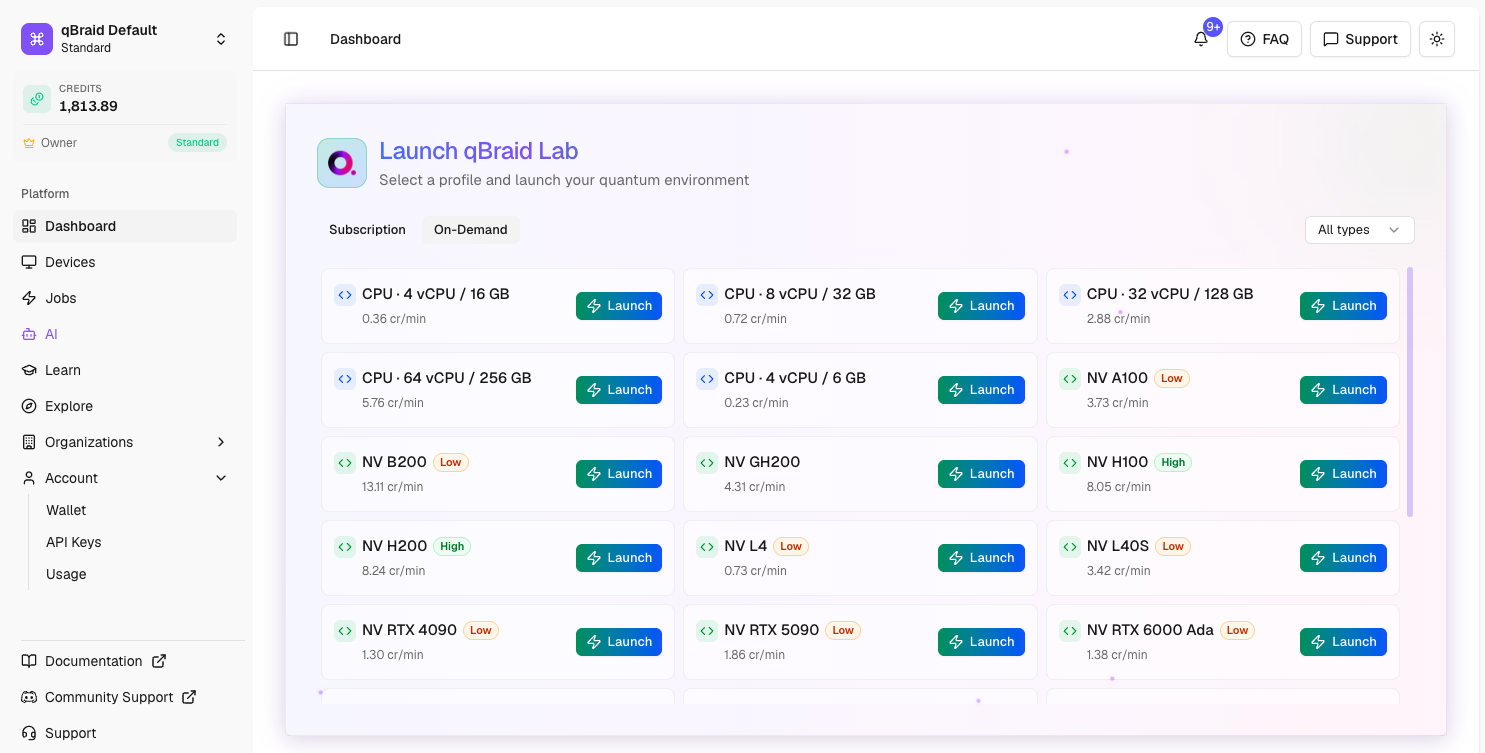
From your [dashboard](https://account.qbraid.com/dashboard), switch to the **On-Demand** tab to see available GPU and CPU profiles. Each profile shows its pricing in credits per minute and a capacity tag indicating current availability: **High**, **Medium**, or **Low**. Profiles tagged **No Capacity** cannot be launched until resources free up. Profiles with no tag means capacity data is not currently available.
Click **Launch** next to any available profile to start an instance.
 You can run up to 5 concurrent on-demand instances at once, depending on your
credit balance. See [pricing](https://docs-v2-staging.qbraid.com/v2/home/pricing#gpu-instances) for per-minute
rates.
## Accessing Your Instance
Once an instance is running, it appears under your **My Instances** tab.
You can run up to 5 concurrent on-demand instances at once, depending on your
credit balance. See [pricing](https://docs-v2-staging.qbraid.com/v2/home/pricing#gpu-instances) for per-minute
rates.
## Accessing Your Instance
Once an instance is running, it appears under your **My Instances** tab.
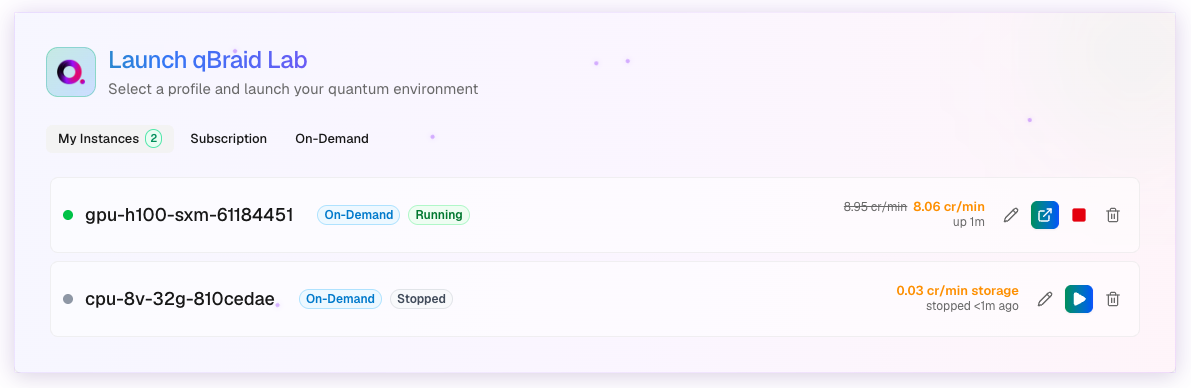 From there you have two quick actions:
- **Arrow icon** — Opens the instance directly in JupyterLab.
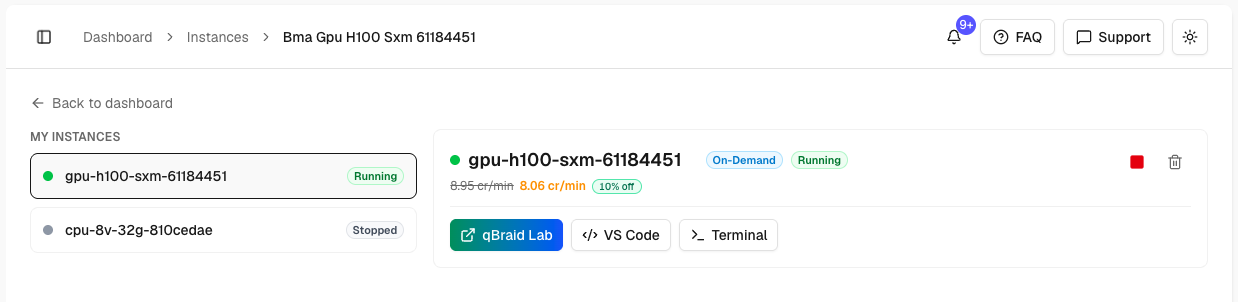
- **Pencil (Edit) icon** — Opens the instance detail page where you can choose how to connect, all from your browser:
- **JupyterLab** — Notebook-first environment for interactive computing
- **VS Code** — Full IDE with extensions and debugging
- **Terminal** — Direct shell access to the instance
From there you have two quick actions:
- **Arrow icon** — Opens the instance directly in JupyterLab.
- **Pencil (Edit) icon** — Opens the instance detail page where you can choose how to connect, all from your browser:
- **JupyterLab** — Notebook-first environment for interactive computing
- **VS Code** — Full IDE with extensions and debugging
- **Terminal** — Direct shell access to the instance
 You can also connect to running instances remotely via SSH using the [qBraid CLI](https://docs.qbraid.com/v2/cli/api-reference/qbraid_compute).
## Instance Lifecycle
On-demand instances have three states you control: **Running**, **Stopped**, and **Terminated**.
```
Launch → Running → Stop → Stopped → Resume → Running
│ │
└── Terminate ◄────┘
```
### Running
Your instance is active and accessible. You are billed for both compute and storage at the rate shown on the instance tile (credits per minute).
### Stopped
Compute is released, but your instance's disk is preserved — all your files, installed packages, and work remain intact. You are billed a small storage-only fee (credits per minute) while the instance is stopped.
You can resume a stopped instance at any time. When you do, your files will be exactly as you left them.
### Terminated
The instance and its disk are **permanently deleted**. All files on the instance are lost and cannot be recovered. Billing stops completely.
## Stop vs Terminate
| | Stop | Terminate |
| :--------------- | :------------------------------ | :------------------------------ |
| **Compute** | Released (no compute charges) | Deleted |
| **Disk / Files** | Preserved | Permanently deleted |
| **Billing** | Small storage fee (credits/min) | No further charges |
| **Resumable** | Yes — resume anytime | No — must launch a new instance |
**When to stop**: You want to take a break but come back to the same environment later. Your files, packages, and configuration stay intact.
**When to terminate**: You are done with the instance and don't need the data. Terminating frees the storage slot and stops all billing.
Some instance types only support terminate — stop and resume is not available.
For these instances, the Stop button will not appear; only Terminate is shown.
You can also connect to running instances remotely via SSH using the [qBraid CLI](https://docs.qbraid.com/v2/cli/api-reference/qbraid_compute).
## Instance Lifecycle
On-demand instances have three states you control: **Running**, **Stopped**, and **Terminated**.
```
Launch → Running → Stop → Stopped → Resume → Running
│ │
└── Terminate ◄────┘
```
### Running
Your instance is active and accessible. You are billed for both compute and storage at the rate shown on the instance tile (credits per minute).
### Stopped
Compute is released, but your instance's disk is preserved — all your files, installed packages, and work remain intact. You are billed a small storage-only fee (credits per minute) while the instance is stopped.
You can resume a stopped instance at any time. When you do, your files will be exactly as you left them.
### Terminated
The instance and its disk are **permanently deleted**. All files on the instance are lost and cannot be recovered. Billing stops completely.
## Stop vs Terminate
| | Stop | Terminate |
| :--------------- | :------------------------------ | :------------------------------ |
| **Compute** | Released (no compute charges) | Deleted |
| **Disk / Files** | Preserved | Permanently deleted |
| **Billing** | Small storage fee (credits/min) | No further charges |
| **Resumable** | Yes — resume anytime | No — must launch a new instance |
**When to stop**: You want to take a break but come back to the same environment later. Your files, packages, and configuration stay intact.
**When to terminate**: You are done with the instance and don't need the data. Terminating frees the storage slot and stops all billing.
Some instance types only support terminate — stop and resume is not available.
For these instances, the Stop button will not appear; only Terminate is shown.
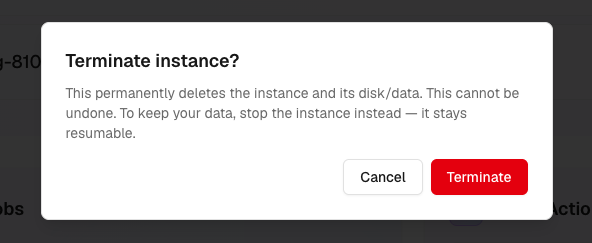 Terminating an instance permanently deletes all files on it. Download or
export any important work before terminating. To keep your data, **stop** the
instance instead — it stays resumable.
## File Persistence
On-demand instances handle files differently from subscription instances:
- **No automatic file sync**: Unlike subscription instances, on-demand instances do not automatically sync files from cloud storage on launch. Each on-demand instance has its own independent disk.
- **Download from cloud storage**: You can use the Files tab to download files from your cloud storage into an on-demand instance. However, changes you make are **not synced back** to cloud storage.
- **Stop preserves files**: When you stop an instance, its disk is preserved. The next time you resume, your files will be exactly where you left them.
- **Terminate deletes files**: When you terminate an instance, the disk and all files on it are permanently deleted.
If you're working on important files in an on-demand instance, download them
to your local machine or push them to a Git repository before terminating.
## Billing
On-demand instances are billed per minute in [qBraid credits](https://docs-v2-staging.qbraid.com/v2/home/pricing#credits) (100 credits = $1 USD).
| State | What you're charged | Example |
| :------------- | :------------------ | :-------------------- |
| **Running** | Compute + storage | 8.95 cr/min (NV H100) |
| **Stopped** | Storage only | ~0.02 cr/min |
| **Terminated** | Nothing | $0 |
Compute rates vary by instance type. See the [pricing page](https://docs-v2-staging.qbraid.com/v2/home/pricing#gpu-instances) for the full rate table. Storage rates are a small pass-through cost based on disk size.
Your credit balance also determines how many concurrent instances you can run:
| Credit Balance | Concurrent Instances |
| :-------------------- | :------------------- |
| 100+ credits ($1+) | 1 |
| 1,000+ credits ($10+) | 2 |
| 2,500+ credits ($25+) | 5 |
Terminating an instance permanently deletes all files on it. Download or
export any important work before terminating. To keep your data, **stop** the
instance instead — it stays resumable.
## File Persistence
On-demand instances handle files differently from subscription instances:
- **No automatic file sync**: Unlike subscription instances, on-demand instances do not automatically sync files from cloud storage on launch. Each on-demand instance has its own independent disk.
- **Download from cloud storage**: You can use the Files tab to download files from your cloud storage into an on-demand instance. However, changes you make are **not synced back** to cloud storage.
- **Stop preserves files**: When you stop an instance, its disk is preserved. The next time you resume, your files will be exactly where you left them.
- **Terminate deletes files**: When you terminate an instance, the disk and all files on it are permanently deleted.
If you're working on important files in an on-demand instance, download them
to your local machine or push them to a Git repository before terminating.
## Billing
On-demand instances are billed per minute in [qBraid credits](https://docs-v2-staging.qbraid.com/v2/home/pricing#credits) (100 credits = $1 USD).
| State | What you're charged | Example |
| :------------- | :------------------ | :-------------------- |
| **Running** | Compute + storage | 8.95 cr/min (NV H100) |
| **Stopped** | Storage only | ~0.02 cr/min |
| **Terminated** | Nothing | $0 |
Compute rates vary by instance type. See the [pricing page](https://docs-v2-staging.qbraid.com/v2/home/pricing#gpu-instances) for the full rate table. Storage rates are a small pass-through cost based on disk size.
Your credit balance also determines how many concurrent instances you can run:
| Credit Balance | Concurrent Instances |
| :-------------------- | :------------------- |
| 100+ credits ($1+) | 1 |
| 1,000+ credits ($10+) | 2 |
| 2,500+ credits ($25+) | 5 |