

API Keys
Create, view, rotate, and revoke API keys for programmatic access to qBraid.
Every qBraid user gets unique API keys for programmatic access. Use them with qBraid Runtime, the REST API, the CLI, or Quantum Jobs from Lab.
Open the API Keys page from the sidebar under Account > API Keys.
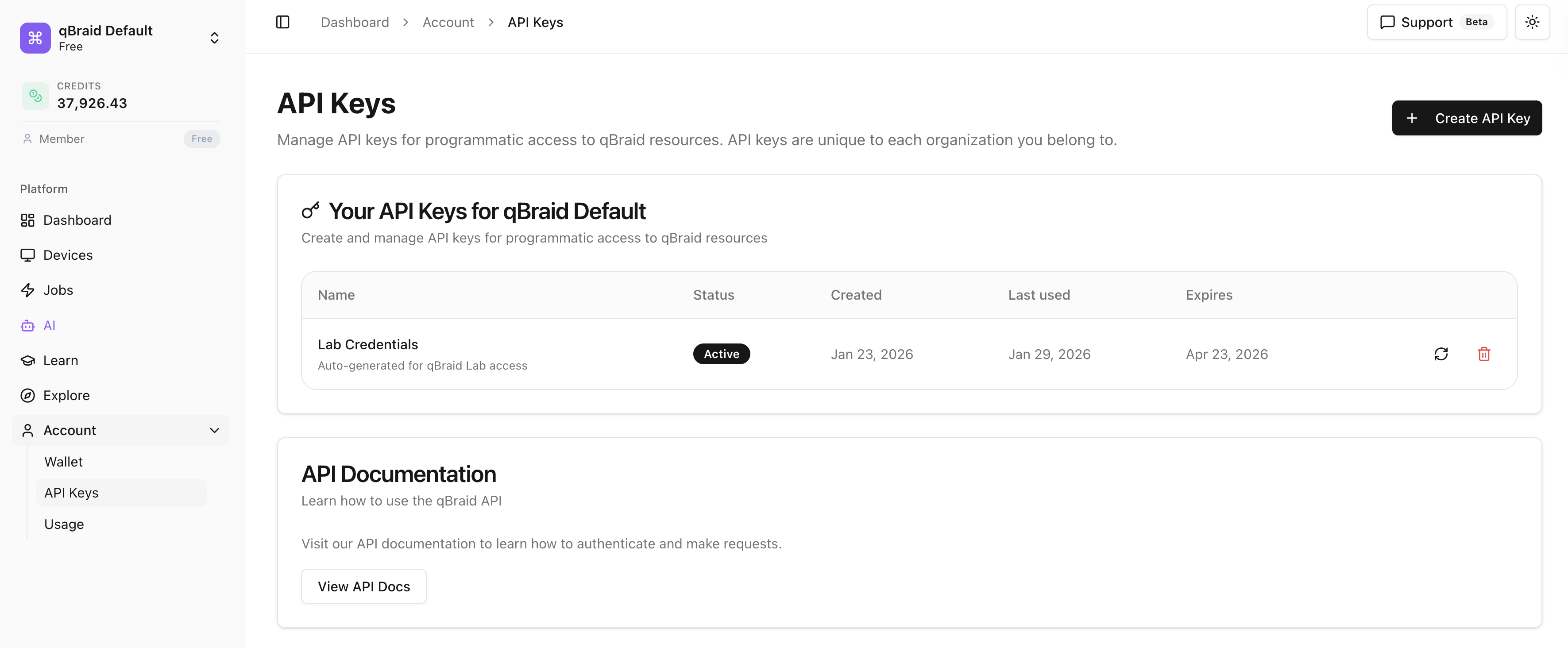
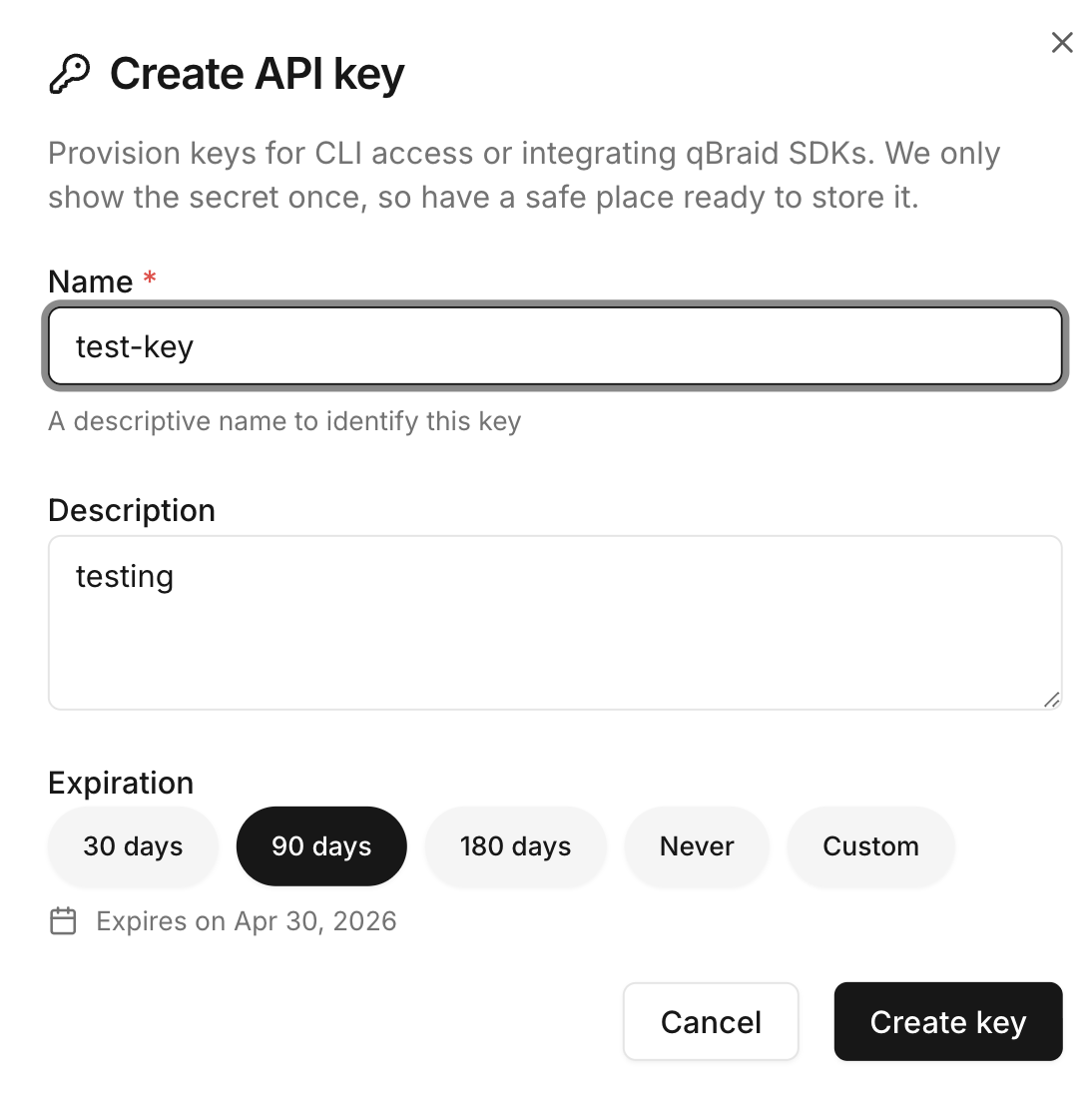
Create an API key
Click Account > API Keys in the sidebar.
The key value is shown only once, right after creation. Copy it immediately and store it somewhere secure. If you lose it, you’ll have to revoke and create a new one.
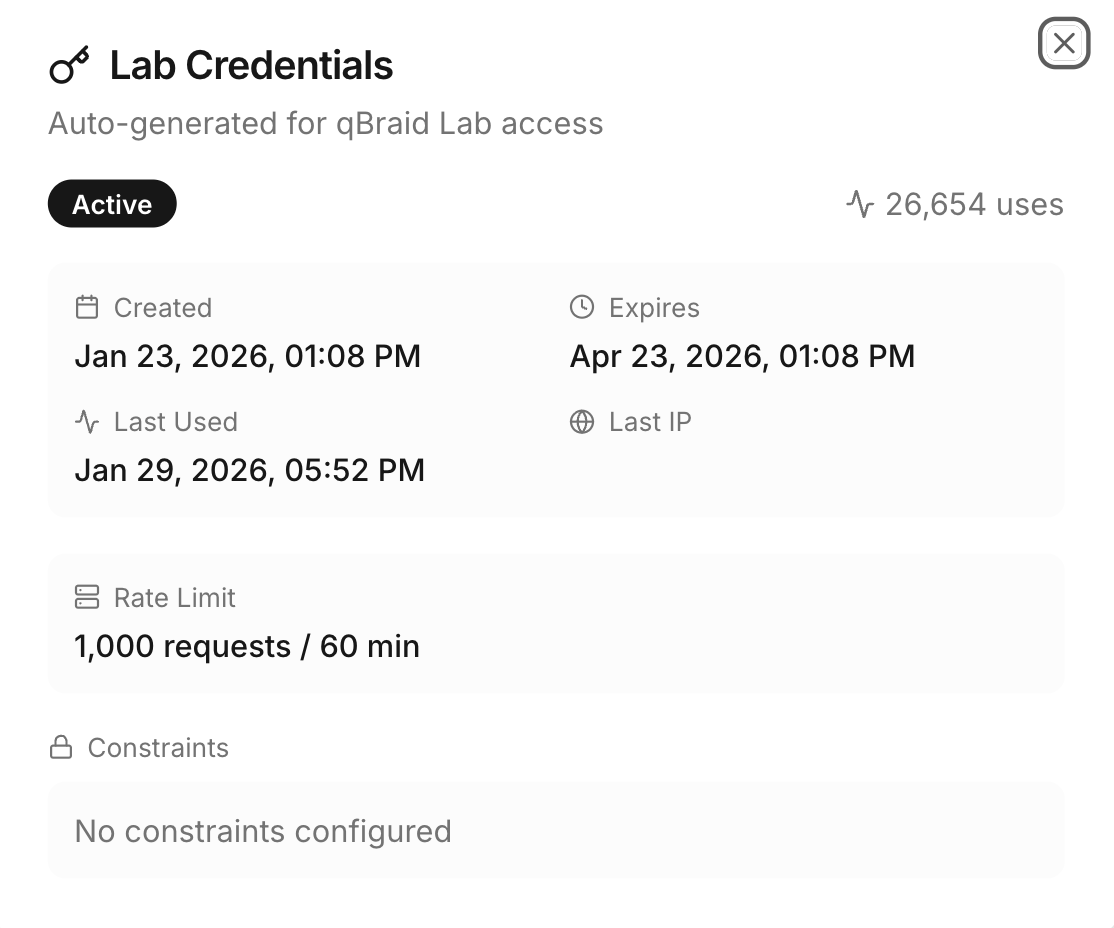
View key details
Click Account > API Keys in the sidebar.
You’ll see:
- Creation date.
- Last used date.
- Status (
activeorinactive). - Permissions and usage stats.
Rotate a key
Rotation generates a new key value with the same name and permissions, and immediately invalidates the old one.
Click Account > API Keys in the sidebar.
The refresh icon sits next to the Copy icon on each row.
Click Regenerate Key in the dialog. The new value is shown once.
Once you regenerate, the old key stops working straight away. Update every service using it before rotating, or production will break.
Revoke a key
Click Account > API Keys in the sidebar.
The key is permanently removed.

Revoked keys cannot be recovered. Make sure nothing in production is still using the key before you revoke.
Security best practices
API keys grant access to your credits and resources. Treat them like passwords.
Rotate regularly
Every 90 days is a reasonable baseline. Rotate sooner if you suspect a leak.
Don't commit keys to source control
Use environment variables or a secrets manager (1Password, Vault, AWS Secrets Manager, etc.).
Don't share keys in chat or screenshots
Send via a password manager or vault link. Screenshots leak through bug reports and tickets.
Monitor usage
Review the Last used column periodically. If a key is being used when it shouldn’t be, revoke it.
If you discover a vulnerability, report it via our security advisory form. For the full security policy, see qBraid Security Policy.
Thanks for your feedback.