Open Quantum
Connect your Open Quantum account to qBraid to run quantum jobs on your own Open Quantum credits.
The Open Quantum integration lets you run quantum jobs on Open Quantum devices through qBraid, paid for with your own Open Quantum credits. Open Quantum devices can only be billed to Open Quantum credits, so you need to connect your Open Quantum account before you can run jobs on them.
“Free” means free of qBraid credits, not free of charge. Open Quantum devices are listed as free on qBraid because running a job on one costs you no qBraid credits. The job is instead billed to the Open Quantum account you connect below, drawing down that account’s credit balance. You can top that balance up by buying credits, or claim free Spark credits through Open Quantum’s promotional offerings.
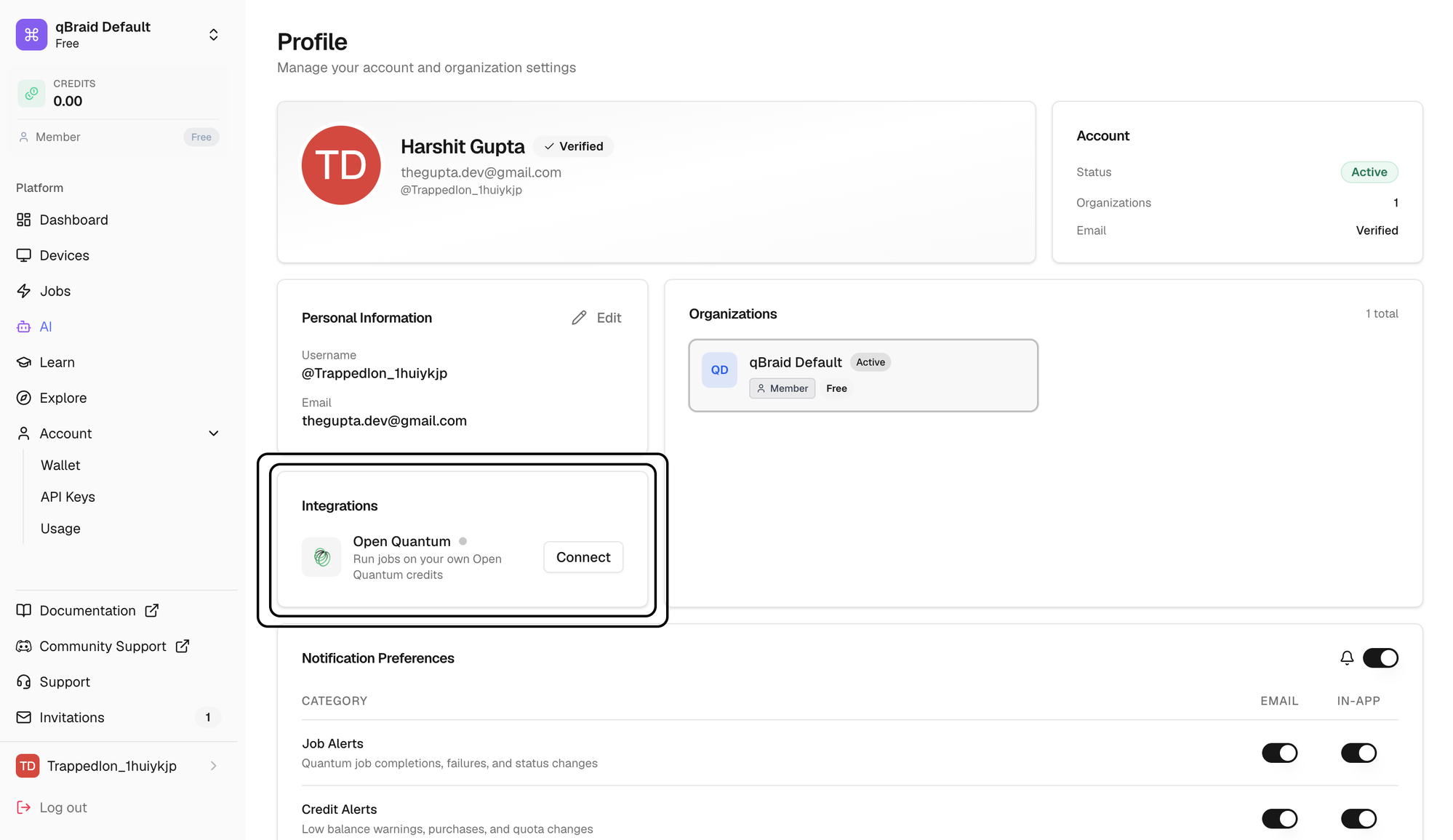
You manage the connection from the Integrations tile on your Profile page.
You need an Open Quantum account before you can connect. It doesn’t have to match the email you use for qBraid, any Open Quantum account works.
Create your Open Quantum account
Set up Open Quantum first, so the account exists when you connect it to qBraid.
Open openquantum.com.
Sign up for an Open Quantum account. Google sign-in is supported.
Complete any remaining onboarding steps on the Open Quantum side.
Claim your free Spark credits
When you sign in to your new Open Quantum account, a welcome banner greets you with an offer of free compute credits, while supplies last. Click Claim $50 Free Credit to add them to your Open Quantum account. These arrive as Spark credits, Open Quantum’s free and promotional credits, which expire 90 days after they’re granted.
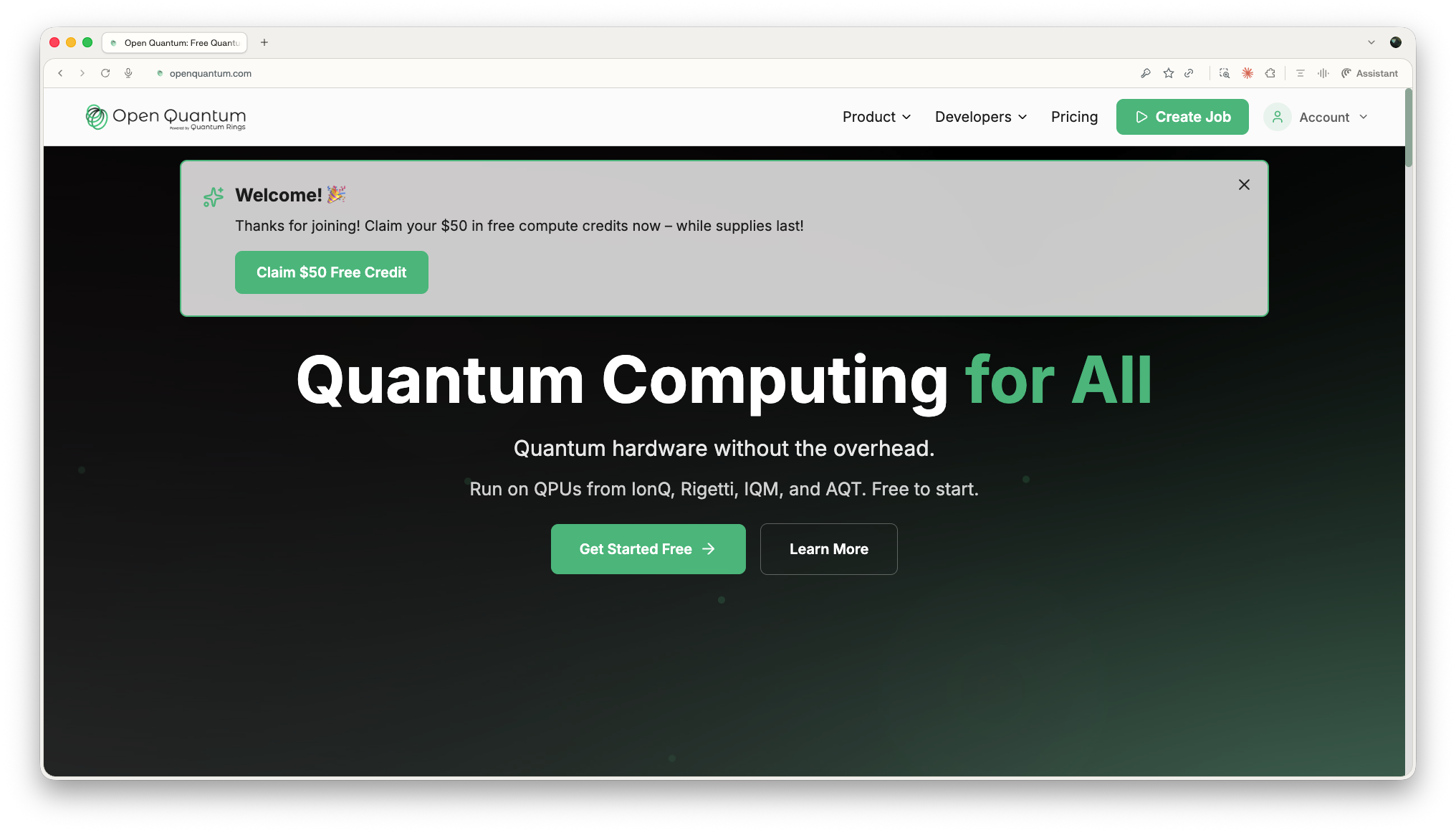
Once you connect your account to qBraid below, jobs you submit to Open Quantum devices through qBraid are billed against these credits.
Connect Open Quantum to qBraid
Go to account.qbraid.com and sign in.
Click your name and avatar at the bottom of the sidebar, or use Account > Profile.
Scroll down to the Integrations tile, below Personal Information. A grey dot next to Open Quantum means it isn’t connected yet.
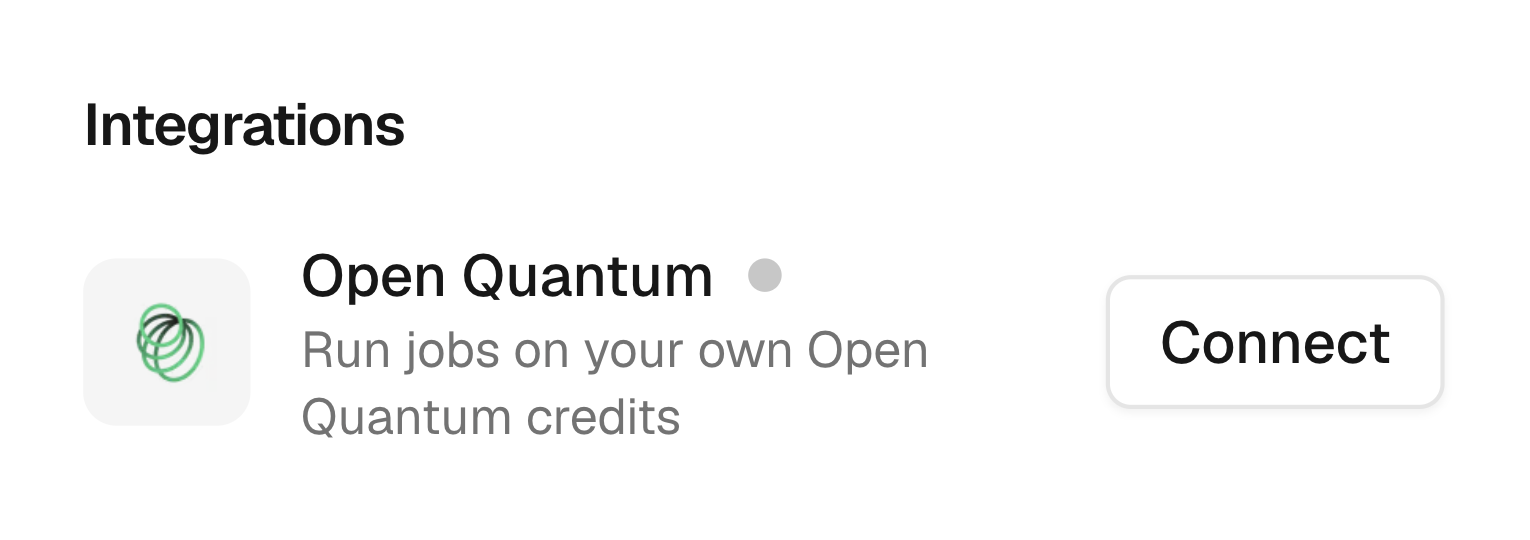
This opens the Open Quantum authentication window.
Sign in with your Open Quantum account. The window closes automatically once you’re authenticated.
Confirm the connection
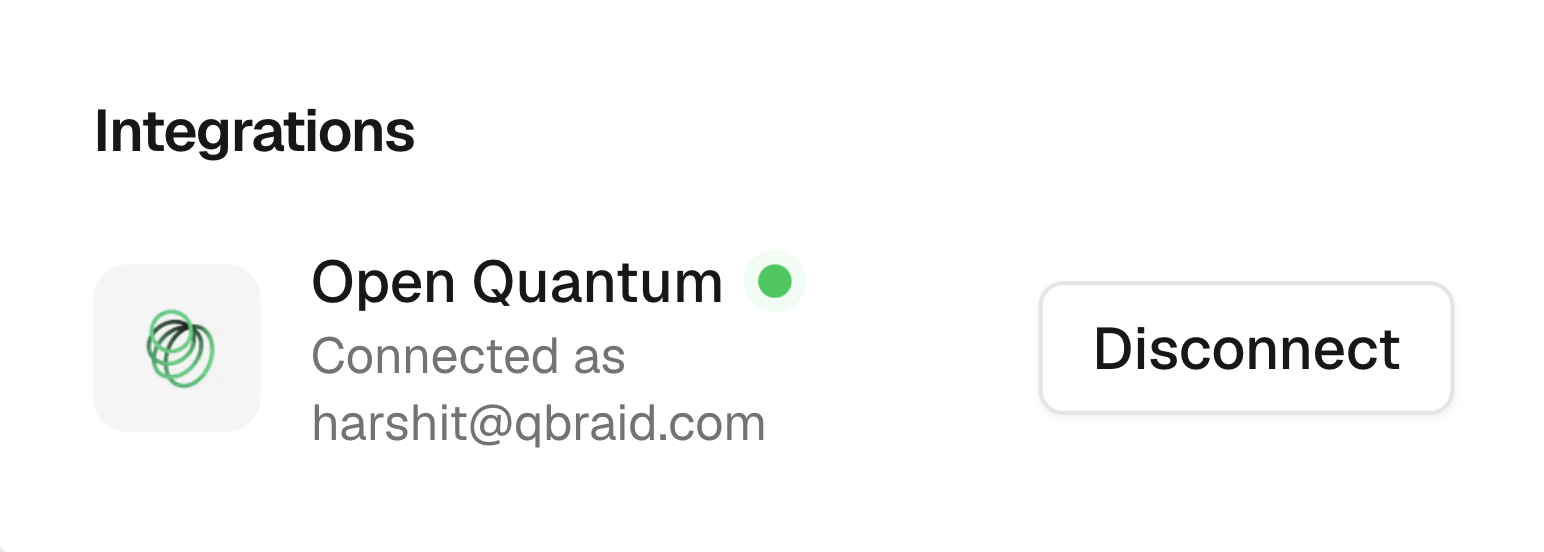
Back on the Profile page, the Open Quantum entry now shows a green Connected dot along with the account you’re connected as. That’s it, jobs submitted to Open Quantum devices will now run on your Open Quantum credits.
Disconnect Open Quantum
To end the integration, open the Integrations tile and click Disconnect next to Open Quantum. Once disconnected, you can no longer run jobs on Open Quantum devices until you connect again, since those jobs can only be paid for with your Open Quantum credits.
Troubleshooting
Insufficient Open Quantum credits
This is the most common error. It means your Open Quantum balance can’t cover the job, usually for one of these reasons:
- You never claimed the $50 of free Spark credits offered when you signed up.
- You’ve spent the credits you had.
- Your credits expired before you used them.
- You’re waiting on your next Promotional Credits refill.
Check your balance on the Open Quantum billing page. Credit Balance shows your Spark and Full credits separately, along with the date your earliest Spark credits expire. Spark credits are the free and promotional ones, and expire 90 days after they’re granted; Full credits are the ones you purchase, and expire after 12 months. Jobs spend your Spark credits first, then your Full credits. Credit Transactions below it itemizes every consumption, promotion, and expiration, so you can see exactly where your credits went.
To top up, click Add Credits to reach the Buy Credits page, where you can purchase Full credits in bundles. Otherwise, wait for your next Promotional Credits refill.
My jobs still fail after connecting
Open the Integrations tile and confirm Open Quantum shows a green Connected dot. If it’s grey, click Connect and finish signing in on the Open Quantum side. Also check that your Open Quantum account has credits available.
The Connect button doesn't open a window
Check that your browser isn’t blocking pop-ups for account.qbraid.com,
then try again.
I still need help
Reach out from the Support link in the sidebar and we’ll take a look at your job history.
Related links
Thanks for your feedback.